








How to Save and Manage Favourite Websites in a Web Browser
Saving your favourite sites is an essential skill for efficient web browsing. When we regularly visit certain websites for study, research, entertainment, or communication, remembering each web address can be difficult. In computer science, browsers provide features that allow users to save, bookmark, or store web pages for quick access later. Understanding how saving your favourite sites works helps students use the internet more effectively, organise information better, and improve productivity while browsing.
Definition and Meaning
Saving your favourite sites refers to the process of storing the web address of a webpage in a web browser so that it can be accessed easily in the future without typing the full URL again.
- Bookmark - A saved link to a webpage stored in the browser.
- URL - Uniform Resource Locator, the address of a webpage.
- Browser - Software such as Chrome, Edge, or Internet Explorer used to access websites.
- Favorites Bar - A toolbar that displays saved websites for quick access.
How It Works - Working Principle
The working of saving your favourite sites in computer science is based on storing the webpage URL inside the browser's internal database. The browser keeps a list of saved links and allows users to open them whenever needed.
General Steps to Save a Website:
- Open the desired website in a web browser.
- Click on the menu icon such as the three dots icon or star icon.
- Select the option like "Bookmark this page" or "Add to favorites".
- Choose the folder where you want to save the site.
- Click Save to store the webpage.
The browser then stores the website address in a bookmark file and displays it in the bookmarks list or favorites bar.
Example of a Website:
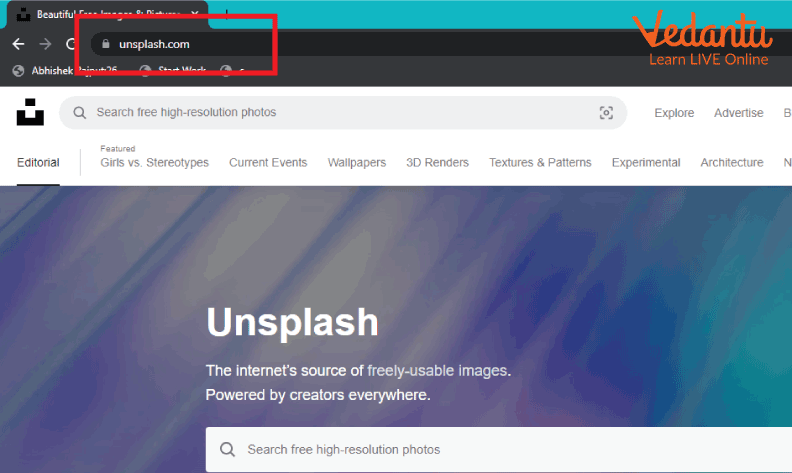
About a Webpage:

The Process of Saving a Webpage:
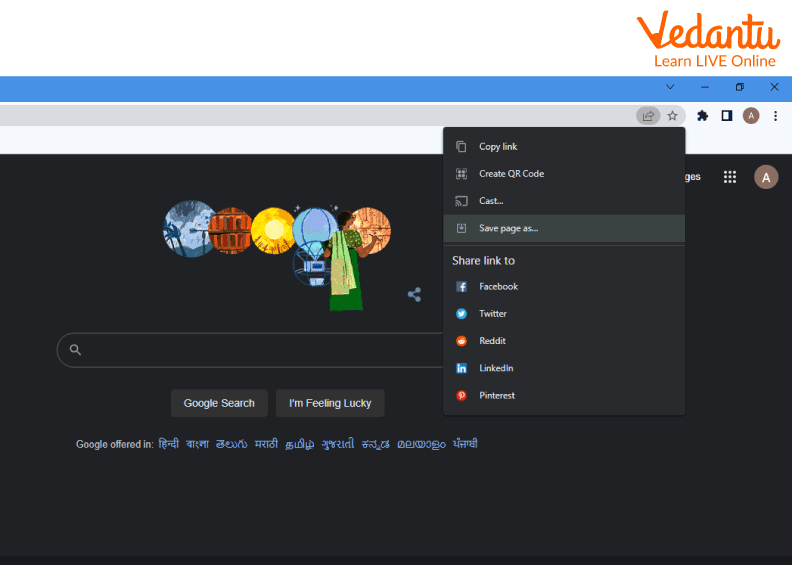
The Three Dots Icon:

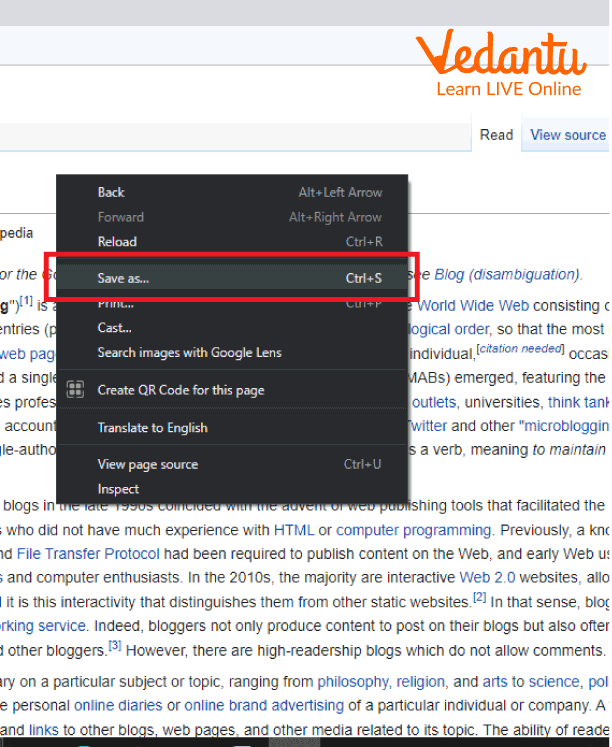
Saving a Webpage:

Saving a Web Page by Right Clicking:
Types and Classification
There are different ways to save your favourite sites depending on the browser and method used.
- Bookmarking - Saving a webpage using the star or bookmark option in modern browsers.
- Favorites - Term used in Internet Explorer for saved websites.
- Saving as File - Downloading the webpage to the computer as an HTML file.
- Reading List - Saving pages to read later, available in some browsers.
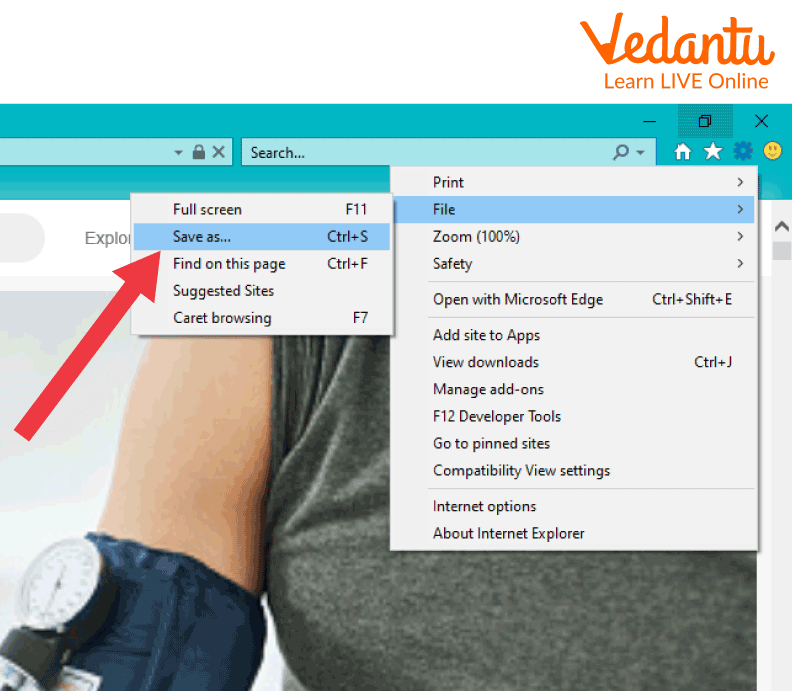
Internet Explorer Logo:

The Gear Icon:

Saving a Site in Internet Explorer:
Features and Characteristics
- Allows quick access to frequently visited websites.
- Organises bookmarks into folders.
- Syncs saved sites across devices when signed in.
- Stores only the URL, not the entire website data.
- Provides editing and deletion options.
Advantages
- Saves time by avoiding repeated typing of URLs.
- Improves productivity and organisation.
- Helps students manage study resources easily.
- Enables easy access to important academic or professional websites.
Disadvantages and Limitations
- Saved links may not work if the webpage is removed.
- Too many bookmarks can create confusion.
- Bookmarks stored locally may be lost if the system crashes without backup.
Applications and Use Cases
- Students saving educational websites and online learning platforms.
- Professionals bookmarking work-related portals.
- Researchers saving reference materials.
- Users storing shopping or news websites for daily access.
Quick Facts About Saving Your Favourite Sites
| Category | Details |
|---|---|
| Type | Browser Feature |
| Used For | Storing frequently visited websites |
| Common Name | Bookmark or Favorites |
| Platform Support | All modern web browsers |
These quick facts highlight the basic technical aspects of saving your favourite sites in computer science.
Interesting Facts About Saving Your Favourite Sites
- The term "Favorites" was popularised by Internet Explorer.
- Modern browsers allow syncing bookmarks through cloud accounts.
- Bookmarks are stored as small data files containing URLs.
- Users can export bookmarks as HTML files for backup.
- Some browsers allow bookmarking specific sections within a webpage.
- Keyboard shortcuts like Ctrl + D quickly save a webpage.
Conclusion
Understanding saving your favourite sites in computer science helps users manage online information efficiently. It allows quick access to important webpages, improves organisation, and enhances browsing productivity. By learning the different methods and features available in web browsers, students and professionals can use the internet more effectively and securely. Mastering this simple yet powerful feature is an essential digital skill in today’s technology-driven world.
FAQs on Saving Your Favourite Sites Using Browser Bookmarks
1. What does “Saving Your Favourite Sites” mean in Computer Science?
Saving your favourite sites means storing the URL (Uniform Resource Locator) of a web page in a web browser so you can quickly access it later without typing the address again.
- Also known as bookmarking
- Available in browsers like Google Chrome, Mozilla Firefox, Microsoft Edge, Safari
- Improves productivity and web navigation efficiency
2. How do web browsers save and manage favourite sites?
Web browsers save favourite sites by storing their URLs in a bookmark manager database within the browser’s local storage or synced cloud account.
- Stores page title and URL
- Organizes bookmarks into folders
- Can sync using cloud services like Google Account or Microsoft Account
3. What are bookmarks and how are they different from browser history?
A bookmark is a manually saved website link, while browser history automatically records all visited web pages.
- Bookmarks are permanent until deleted
- History may be auto-cleared or deleted
- Bookmarks are organized for quick access
4. What are the main features of a bookmark manager?
A bookmark manager is a browser tool that helps users store, organize, edit, and delete saved websites efficiently.
- Create and manage folders and subfolders
- Search and sort bookmarks
- Import and export bookmarks as HTML files
- Sync across multiple devices
5. How can you save a favourite site in Google Chrome?
In Google Chrome, you can save a favourite site by clicking the star icon in the address bar.
- Open the desired web page
- Click the star icon
- Choose a folder and click Done
6. What are the advantages of saving favourite websites?
Saving favourite websites improves browsing efficiency, organization, and productivity in web development, research, and exam preparation.
- Saves time by avoiding repeated searches
- Organizes study or project resources
- Provides quick access to frequently used web applications
7. Are there any disadvantages of saving too many bookmarks?
Saving too many bookmarks without organization can reduce efficiency and make retrieval difficult.
- Creates clutter in the bookmark bar
- Hard to manage without folders
- May include outdated or broken links
8. How can bookmarks be backed up or transferred to another computer?
Bookmarks can be backed up by exporting them as an HTML file or syncing them using a cloud-based browser account.
- Use the browser’s Import/Export Bookmarks option
- Save the HTML file externally
- Enable cloud sync for automatic backup
9. What is the role of cloud computing in saving favourite sites?
Cloud computing allows bookmarks to be synchronized across multiple devices using online accounts.
- Syncs via Google, Apple, or Microsoft accounts
- Access bookmarks from mobile, tablet, or desktop
- Provides automatic backup and recovery
10. Why is saving favourite sites important for students and exam preparation?
Saving favourite sites helps students quickly access learning platforms, coding resources, and online study materials during exam preparation.
- Stores links to e-learning platforms and documentation
- Helps organize programming tutorials and practice portals
- Improves time management during research and revision